Showing posts with label networking. Show all posts

Monday, March 25, 2013

Raspberry Pi RDP

Raspberry Pi Remote Desktop Protocol

First to get the Windows PC ready, use the guide on this site Howtogeek.com to set RDP.

Then using the RPI-TC OS from rpitc.blogspot.com on the Raspberry Pi.

I was able to use the instructions from "The New Tech Tv" in this episode tnt008-raspberry-pi-yummy-cli

Here is the set up in a shortened form.

After installing the OS to the Raspberry Pi, find the IP address of your pi, by running "ifconfig" in a terminal.
Then go to http://www.chiark.greenend.org.uk/~sgtatham/putty/download.html, Download PuTTY on your Windows PC and install it.

Use PuTTY to connect to your pi. (If you need help because you haven't used putty and you need to see what this looks like, watching the "The New Tech Tv" episode 8 and it will show you where to put your information)

Once you have connected to your Pi, you will get a pop up window the first time you connect to it, just click ok.

If everything has gone correctly, you will then see a little windowed terminal.
We need to login with "root" and password is "raspberry"

Now we will go to the Desktop in the Terminal, use "cd /root/Desktop"

Now to see whats on the desktop use the command "ls"

There are a few different shortcuts, but the one we want to use is, RDesktop.

In your Terminal use "nano RDesktop Example!.desktop"

This will open the shortcuts parameters, some of which we will want to change.
This is roughly what it will look like


[Desktop Entry]
Name=Windows 7
Exec=rdesktop -u Vm -p -f -E -x m -z -P 192.168.123.6
Type=Application Terminal=False
Icon=/usr/share/pixmaps/RDesktop.png
Categories=Application;Network;X-Red-Hat-Base;X-SuSE-Core-Internet;

In the Name Field label as you want.
On the Exec line, you will want to put your username after the "-u" (mine is called Vm)
-p is to prompt for a password, -f for fullscreen, and after the -P put the Ip Address of the windows Pc you will be RDP'ing into.

Now if you want this to startup when the Pi starts here is what you do.

Type "cd  /root"
Then "nano win7start.sh"
Then Type

#!/bin/bash
#sleep 5
usr/bin/rdesktop -u Vm -p -f -E -x b -z -P 192.168.123.5

and click Control and O to write the file, and Control X to exit nano

Then we need to make it an exicutable script, type "chmod +x win7start.sh"
Hit enter,

In a Terminal "cd /etc/xdg/lxsession/LXDE/"
Then typel "nano autostart"

It will look like this

#@lxpanel --profile LXDE
@pcmanfm --desktop --profile LXDE
#@xscreensaver -no-splash
@leafpad /root/README


we want to change it to this


#@lxpanel --profile LXDE
@pcmanfm --desktop --profile LXDE
#@xscreensaver -no-splash
#@leafpad /root/README

@lxterminal --command "/root/win7start.sh"

and click Control and O to write the file, and Control X to exit nano.

Now it's time to reboot and see if it works!

It worked for me!

Have fun with it, and More posts to come.

As a side note, while this is very cool, it also opens your Windows Pc to more vulnerabilities, by using RDP.
In some cases, it may be wiser not to use this protocol, but that is up to you and your Admins.


Monday, October 15, 2012

Android SSH to Amazon EC2 (for free*)

Continuing down the Amazon EC2 path, we can use the free tier for 1 year, so lets set it up.
 From Amazons Pricing page https://aws.amazon.com/ec2/#pricing


Free Tier*
As part of AWS’s Free Usage Tier, new AWS customers can get started with Amazon EC2 for free. Upon sign-up, new AWS customers receive the following EC2 services each month for one year:
  • 750 hours of EC2 running Linux/Unix Micro instance usage
  • 750 hours of EC2 running Microsoft Windows Server Micro instance usage
  • 750 hours of Elastic Load Balancing plus 15 GB data processing
  • 30 GB of Amazon EBS Standard volume storage plus 2 million IOs and 1 GB snapshot storage
  • 15 GB of bandwidth out aggregated across all AWS services
  • 1 GB of Regional Data Transfer


You will need :
30 minutes
A Rooted Android Phone
Internet access

Assuming you have already made a Amazon EC2 account, (if you haven't, follow the instructions on this post

Login to your EC2 instance.

Select which Region you want it to be in, (on the left hand top side.) Then Launch a new instance.


Use the Classic Wizard, and click continue


Anything with the Stars are part of the free tier, 
but click the select on the Ubuntu server 12.04 LTS selection

You don't need to change anything on this page, click continue,


Again, not changing anything on this page (if you do, it might upgrade you to a paid tier not the free one), click continue, 


Click continue,

Name Your Instance, click continue

We are going to Create a new key pair, Enter your kaypair name and click the create button

It will then download your private key with a .pem extention, click continue


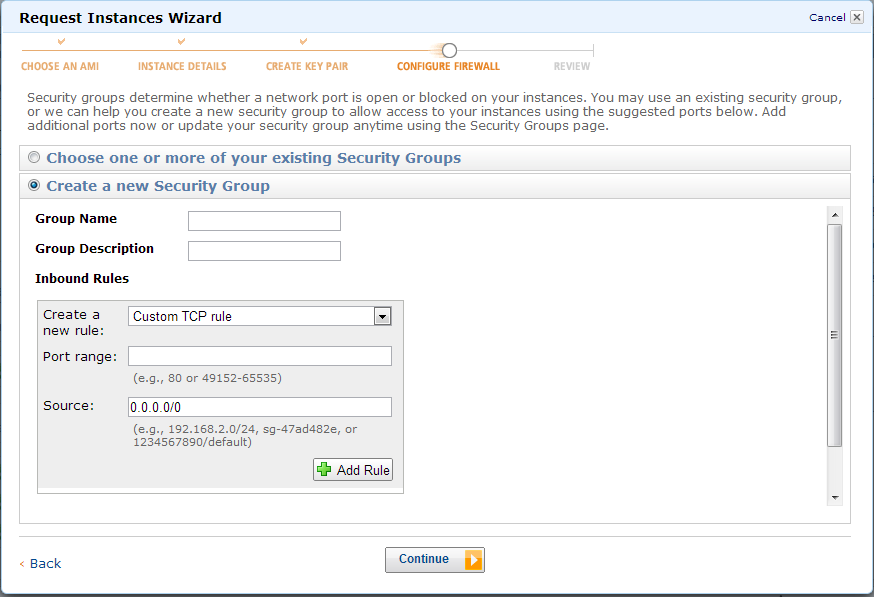
Now it's time to Create a security group, which to Amazon  EC2 is the firewall setting ,

Name your Security group, and then in the inbound rules box, from the drop down menu select All TCP and leave the source box alone, and click add rule (this is so in the future we can add Proxies, If you don't want to do this, skip this step and go to the next one below),


Under the Inbound rules box, click the drop down menu and select the Custom TCP rule, and type 22 in the port range, and click add rule then continue


Now that our firewall is set up, we are finished setting it up, click launch


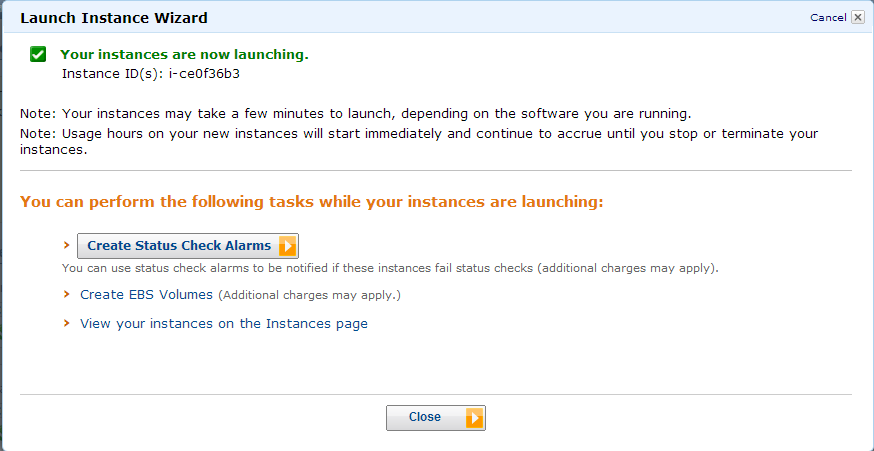
It will now launch your instance, which can take a few minutes, click close


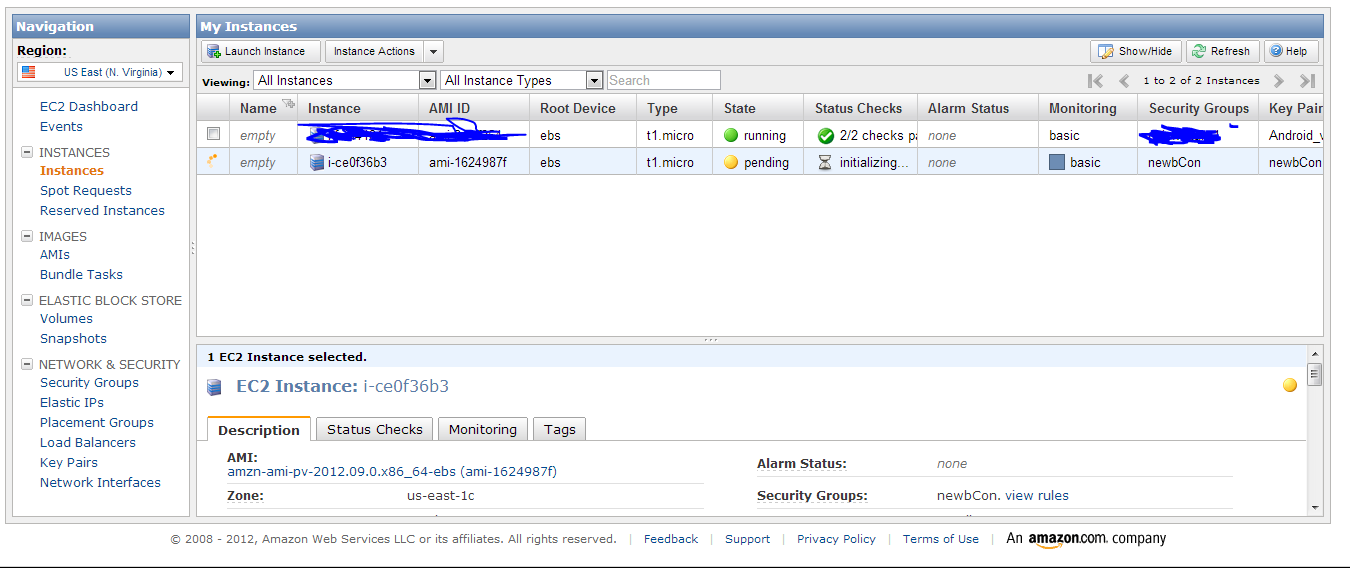
Now you will see this screen, showing that our newbCON server is initializing, now, time to get your Android Device 

You now have 2 different options:
#1 Plug your device into the computer
or 
#2 If you have an microSD card 

Make a folder (i.e. keypair) to save your key to on your android device,
and copy the downloaded private key to it.


Next you will need to right click on your Amazon EC2 and click the connect option, then click the Connect with a standalone SSH Client and in the gray box is the info you need,

take note of everything after the @ sign (this is your host address), you will need to type this into your device in a minute

Back on your device Download, install SSHTunnel from the playstore

Open the App,
 

 Click Hosts, 

                                                             Type out the host address

 Click ok, and then click the User option, then type ubuntu, then click ok

check the box that says Use socks Proxy, scroll down on your device


check the box that says Global Proxy,
 

Then press your menu button, and click the Key File Manager,

 Browse to the keypair folder you created, click into it

then click your private key file

then click the Tunnel Switch box,
 

Wait a minute,
 

Click Accept,
 

And if all has gone correctly, it will tell you it has connected in about a minute.

The First one SSH connection i made for myself worked for both my new S3 and Nexus 7, but as i was creating the newbCON SSH on my Nexus 7, it would not connect. I tried rebooting both my Nexus and the Amazon EC2 Server with no luck. So your millage my vary, but it is confirmed working. 

I found out about the app and how to set it up on android at a Tech meeting I had on Friday, and i want to thank the person for his help. For now I will not name him, just in case he wants to stay anonymous, but without his help and slides, I wouldn't have know how to do this. Thanks Man!


*Update July 14 2013, I got an email saying my free instance was going to expire at the end of the month. I have not been using it for quite a while, but left it on and running, to see how long it would last. I made it back 10-25-12 and it has gone it 7-29-13.

Friday, October 5, 2012

Upcoming Project!

I had brain child yesterday while listening to "The New Tech Tv" Podcast Ep. 5

Why not get a Lapdeck for cheap, and plug a raspberry pi into it? I was working up how I could use that Matt had done and change it for the Pi. Then after thinking about it for about 2 and a half hours, which I was then off of work, decided to look up to see if the mod had been done for it yet. Sure enough, my brain child had been done already. BUT, where I see to improve on it, is get the pi to the point where it can log into a VM and run windows using the Pi-lapdeck as a terminal, with a minimalistic Linux installed.

So, since I have 2 pies, I bought 2 of the lapdecks at $50, and as soon as they get here, my the hacks begin!

More to come, and there is still a huge project I am working on, have been working on since before DEFCON 20. I have to finish getting it up and running and documentation for, then I will post it.


Saturday, September 29, 2012

Long Time No Post.

I have been pulling crazy hours at my day job and haven't posted in a while. Lots of over time which means a bigger paycheck, but that's as long as you can keep the wife happy during that time. 

So for my updates:

Bricked my Wifi Pineapple Mark 4, just got the cable this week and re-flashed from serial.
I bought this USB 2.0 to TTL UART 6PIN Module Serial Converter http://www.amazon.com/gp/product/B006JKNWLE/ref=oh_details_o00_s00_i00 

Bought the NEW alfa card AWUS036NHR in a kit I got from Amazon. 
High-Gain 2000mw 2W 802.11 B/G/N Wireless
So far I really like it and it suits my needs wonderfully.

I received my Raspberry Pi micro SD card to SD half cards from Kickstarter.
Here is the link to show what it is and how to get one. http://www.quilix.com/pio

I also grabbed a couple of NFC tags to start playing with.

I also have another idea for hiding the raspberry pi, but i want to show pictures of it once it's done.


Sunday, August 26, 2012

Weekend Lab Project: Personal ESXi Server

I finally got it up, and am now loading os' onto it. In the coming Days I'll post what I have done, and document the pitfalls I hit.

Sunday, June 10, 2012

My Weekend Project

Here is my weekend project. 

I "left" my router in my neighbors house, 
I still need my internet, so here is how I got it and also the snags I came up against.


Say you left few of your routers around your neighborhood, (Linksys, and Belkin.34e) in this case, and you have alot of devices you need to connect to the internet. I have my TP-Link USB adapter connected to my "Dell Server" to supply the internet using the "Internet Connection Sharing" protocol  with the sharing to "Local Area Connection" (Nic 1) which connects to the internet port of my "Personal Router". That gives "My Network" Internet connection. 

But on my "Dell Server" I have a "Media Server" and "Virtual Box" running and want to be able to have that accessible to my network but not my neighbors. So what I did was connect my Second "Local Area Connection 2" to my "Personal Router". Now when I had it plugged in, nothing was working, what I had to do is set a Static Ip Address on "Local Area Connection 2" then everything started working.

Yay, It's Done, Now It's Time To Play!