Tuesday, June 4, 2013

Project Updates

I missed posting in the month of May!

Well I have been very busy, I am involved with 2 different computer groups in town. One is a Linux user group and the other is a Computer Security group.

I've been presenting at both and have had no time to post what projects I've been doing!

So I have completely converted to Linux for my everyday computing. For the Last month I have been rocking Linux Mint 14 KDE on my 64 GB SSD and it has been great. The only issue I have had is with My Laptop's  battery life. On Windows it lasts about 2- 2:30 hours, while on linux it lasts about 1 hour and 30 minutes. That is even after turning off the DVD drive the webcam, and mic. Plus installing the packages to make linux more laptop friendly. 

Kali Linux is amazing! I have it on my Netbook, the Pi, Multi-boot jump drives, and on my Sdcard (which my laptop can boot from).

I am studying for the LPIC1 which is going well. I got the book from O'Reilly, here is a link to it LPIC-1 Study Guide

I am going to Defcon 21 and to BSides Las Vegas. I also Submitted a talk for Defcon, we will have to see if I get in.

I have also been doing a lot with the Raspberry Pi. Multi-booting, playing with new OS's, and just got my Pi Cam. This week I plan on doing a project with it. And it will be documented and posted.

I also am staring to build my own destro, based on Debian 7 stable, more of that to come in the future.

I have a Raspberry Pi war-driver project in the works, and I am making a Tv cabinet to put all my electronic gear in so my little one won't be tempted to play with it.

That reminds me of something else I did. I Fixed a 44 Inch Samsung DLP TV. It had a Bad color wheel and lamp. I spent about $240 and it is working wonderfully. It has HDMI, VGA, and DVI input, so I am super Stoked. We have been watching tv off of my older 55 inch rear projection Mitsubishi Tv, though s-video, so you can imagine the difference.

My LapDecks are amazing, I bring one with me on my Laptop bag at all times.

I'm playing with Bittorrent Sync on the Raspberry Pi, and also part of a team in Cyber Olympics, more to come on that in the future.

I have flashed Ubuntu Touch to my Nexus 7, and flashed android back.

I have flashed CM 10.1 RC2 on my S3 and Love it!

I have also been playing with the Kos cable for android and his lovely little command line app that can grab all sorts of fun files off what ever phone I plug it into.

I am still playing Ingress, Currently I am Level 7.

I live on Google plus, so if you have any questions or comments, leave them there, and I'll get back with you.


Oh yea, almost forgot.... I have Finally Bought My First Personal Domain Name..... Welcome to Securityiskey.net!!!

Friday, April 26, 2013

Raspberry Pi Lapdeck Wire Harness

In the Past post I showed you the parts you will need, So here are the Pictures of how I did it.

I got this piece...

 Then I cut off the mini male side of the cable, Leaving the female micro usb.


 Then I measured the case and 
how much cable I would need for this cable, 
and cut the excess off.
 

Soldering Time!
 Here is the Layout

Make sure to cut your heat shrink and put it BELOW where you are soldering, 
on the wire BEFORE you start soldering


So here is the pictures of me hooking it up to the lapdeck and booting a couple OS's


Here is the Final Product! 
This is my second time doing this, and in the future, 
I'll be ether making a case that snaps on 
or another type of cable management. 


Sunday, April 21, 2013

Raspberry Pi Lapdeck

Here is the list of cables and where you can buy them, to make your raspberry pi work with your lapdeck.

First You Need a Raspberry Pi here are 3 different places to get them from.


newark.com
alliedelec.com
mcmelectronics.com

Here is 2 different sites to find the atrix or bionic Lapdeck


amazon.com
ebay.com

Now here comes the fun!

You need a

1ft Micro HDMI Male to Micro HDMI Female


Micro USB B Male To Female M/F Cable

Here is a kit from Amazon that has both of the above, but the first time I bought the kit, the HDMI cable didn't work, the second time they did. So buyer beware!


Cable Adapter Set Motorola Atrix


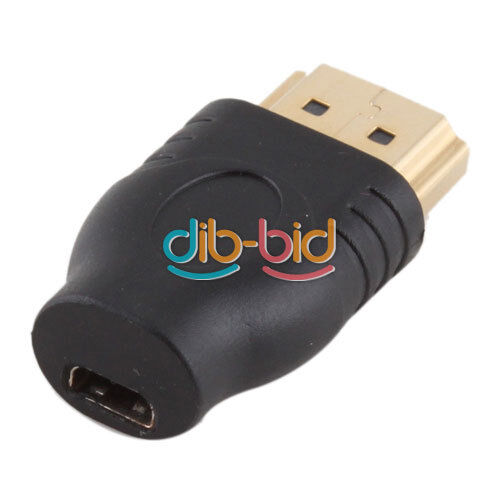
You will also need a Micro HDMI to Full HDMI

HDMI Male to Micro HDMI C Female F/M

Depending on how you wire your pi, you will need a cable like this, to cut and solder together, like the Picture at the bottom on the page.


One More Cable that you might need


Here is another Site that has different Pictures of cabling the Raspberry Pi.

I am working on a few different designs. More to come.

Monday, March 25, 2013

Raspberry Pi RDP

Raspberry Pi Remote Desktop Protocol

First to get the Windows PC ready, use the guide on this site Howtogeek.com to set RDP.

Then using the RPI-TC OS from rpitc.blogspot.com on the Raspberry Pi.

I was able to use the instructions from "The New Tech Tv" in this episode tnt008-raspberry-pi-yummy-cli

Here is the set up in a shortened form.

After installing the OS to the Raspberry Pi, find the IP address of your pi, by running "ifconfig" in a terminal.
Then go to http://www.chiark.greenend.org.uk/~sgtatham/putty/download.html, Download PuTTY on your Windows PC and install it.

Use PuTTY to connect to your pi. (If you need help because you haven't used putty and you need to see what this looks like, watching the "The New Tech Tv" episode 8 and it will show you where to put your information)

Once you have connected to your Pi, you will get a pop up window the first time you connect to it, just click ok.

If everything has gone correctly, you will then see a little windowed terminal.
We need to login with "root" and password is "raspberry"

Now we will go to the Desktop in the Terminal, use "cd /root/Desktop"

Now to see whats on the desktop use the command "ls"

There are a few different shortcuts, but the one we want to use is, RDesktop.

In your Terminal use "nano RDesktop Example!.desktop"

This will open the shortcuts parameters, some of which we will want to change.
This is roughly what it will look like


[Desktop Entry]
Name=Windows 7
Exec=rdesktop -u Vm -p -f -E -x m -z -P 192.168.123.6
Type=Application Terminal=False
Icon=/usr/share/pixmaps/RDesktop.png
Categories=Application;Network;X-Red-Hat-Base;X-SuSE-Core-Internet;

In the Name Field label as you want.
On the Exec line, you will want to put your username after the "-u" (mine is called Vm)
-p is to prompt for a password, -f for fullscreen, and after the -P put the Ip Address of the windows Pc you will be RDP'ing into.

Now if you want this to startup when the Pi starts here is what you do.

Type "cd  /root"
Then "nano win7start.sh"
Then Type

#!/bin/bash
#sleep 5
usr/bin/rdesktop -u Vm -p -f -E -x b -z -P 192.168.123.5

and click Control and O to write the file, and Control X to exit nano

Then we need to make it an exicutable script, type "chmod +x win7start.sh"
Hit enter,

In a Terminal "cd /etc/xdg/lxsession/LXDE/"
Then typel "nano autostart"

It will look like this

#@lxpanel --profile LXDE
@pcmanfm --desktop --profile LXDE
#@xscreensaver -no-splash
@leafpad /root/README


we want to change it to this


#@lxpanel --profile LXDE
@pcmanfm --desktop --profile LXDE
#@xscreensaver -no-splash
#@leafpad /root/README

@lxterminal --command "/root/win7start.sh"

and click Control and O to write the file, and Control X to exit nano.

Now it's time to reboot and see if it works!

It worked for me!

Have fun with it, and More posts to come.

As a side note, while this is very cool, it also opens your Windows Pc to more vulnerabilities, by using RDP.
In some cases, it may be wiser not to use this protocol, but that is up to you and your Admins.


Thursday, February 7, 2013

Nation Wide Wifi!


So here is the main information I have gleaned from a quite a few sites.

The IEEE announced that it has published the IEEE 802.22 standard.

It plans to provide broadband access to regional areas, bringing reliable and secure high-speed service to under-serviced areas. They are also using a new standard called the Wireless Regional Networks (WRANs), taking advantage of the transmission characteristics of the VHF and UHF TV bands to provide the broadband wireless access over a large area, up to 62 miles (100 km) from the transmitter.

Every WRAN will deliver up to 22 Mbps per channel without channel interfering with reception of existing TV broadcast stations by using the so called "white spaces" between the occupied TV channels.

To put it in a nutshell, 802.22 was designed to run on a totally new spectrum which was made available when analog TVs were outlawed some years back in the US. For those who prefer more solid scientific figures, the 802.22 spectrum will work in ranges from 54MHz to 698MHz, where such frequencies are the perfect vehicle for long distance transmissions.

IEEE 802.22 incorporates advanced cognitive radio capabilities including dynamic spectrum access, incumbent database access, accurate geolocation techniques, spectrum sensing, regulatory domain dependent policies, spectrum etiquette, and coexistence for optimal use of the available spectrum.

The IEEE 802.22 Working Group started its work following the Notice of Inquiry issued by the United States Federal Communications Commission on unlicensed operation in the TV broadcast bands.

Click Here for the link for the press release, in pdf format from the IEEE

For more information on the of 802.22, click here to go to Wikipedia's definition.

I found the "Approach to the PHY layer" an interesting read, and I will be doing more research on it.

Another note, a few sites where calling this "Super Wifi" and others where calling it "Free Nation Wide WiFi".

Friday, January 18, 2013

A Question About Mobile Security.

My Wife was on an online form when she came across a question.

"Do need to put Security on my mobile devices?" This person has an iPhone, iPad and kindle.

So let start with a question.

How much information is on your Computer?

Is it important?

Is it Valuable?

Do you have security to protect it?

How much more Information are you carrying in your pocket?

It has all your contacts, email, facebook, banking, notes, pictures and videos.

I would say that we have more valuable information to us in our phones and tablets, then we do in our computers today.

I know we should be protecting that information, but the way we protect our computers and how we protect our phones are different.

On the subject of Anti-Virus:

Anti-Virus companies have computers out on the internet that see what new Virus' there are, and then see how they are written. By doing this, they can then create a "Signature" of the Virus and then send out that signature to everyone's computers and tell them to add it to the Bad Signature list, much like a bad check.

With our computer software, like Microsoft office, it have a signature, and the Anti-Virus company puts it on the OK list and then that software doesn't get updated very often.

With Application on our phone, whether it is a iPhone or Android, we can't use the same type of methodology. The reason being, is that the application on our phones get updated very often. And every time it gets updated, it is a new signature. So there would be no way for the Anti-Virus on your phone to be kept up to date.

What I would suggest as best practices for securing your mobile device.

First, Set a lock screen pin
For anyone trying to get in your phone while its on the table, it will slow them down from getting to your important info. The Longer the Password the better. It would be great if it where at least 8 digits long.

Second, Make back ups of your device.
With iPhones that is done with iTunes. For Android, this will become easier for the non-rooted devices, with this app when it is released. It's currently called carbon (beta). If your Android is Rooted just use, TitaniumBackup. When you are doing these backups, if you have the option, make sure to encrypt the saved  data, just as an added level of security.

Third, I would get a service that can track your phone if it is lost or stolen.
For iPhone you have the option to use iCloud with remote wipe. And for Android, I would use Cerberus on the Play Store, or for your Kindles use Cerberus on Amazons App Store

Fourth, DO NOT trust free or public wifi.
There are people at coffee shops, airports, anyplace with wifi, waiting for some ones phone to connect and then be able to steal your data from your device. DO NOT BANK OR SHOP ON FREE OR PUBLIC WIFI. I would also go so far as to say, turn off your wifi on your phone unless you need it. Because when it is left on, it broadcasts what wifi routers it has connected to in the past. By turning it off, you will be more secure when you aren't using it, and you will save battery life.


Fifth, Make sure your Phone is up to date. Update to the newest Operation System when it becomes available, because with they offer that, it means that they are patching security  holes they found in the last version.

This is a very basic security template for securing your mobile devices.

If there is more interest in this Subject, I will follow it up with more ways to secure your information while using your phone on wifi.

Thursday, January 3, 2013

SecurityTube Wifi Security Expert Class

I have finally finished SecurityTube Wifi Security Expert Class!

It is worth it's weight in gold! It is over 1000 minutes in video alone, and to follow along you need at lest 1000 minutes to set up the routers and such.

I would suggest anyone who wants to learn more about wifi, wifi security and how it works.

I have gone threw and made notes to go back to in the future.

I was Super Excited to finish it!

and for my next project,
Network+
Raspberry Pi Os class
and a few other projects.

More to come.